
Get Item or File Changes as Alert HTML
Use Get Item or File Changes as Alert HTML to generate a suggested subject and formatted HTML showing what changed in a SharePoint item, file, or page.
The action retrieves the relevant SharePoint versions, compares their field values, and builds the alert content for you. It is designed primarily for email, but you can use the HTML anywhere the destination supports HTML content.
When to use this action
Use this action when you want to:
- replace a classic SharePoint Alert with a Power Automate email
- show previous and current field values without building an HTML table
- use consistent alert wording and formatting across several flows
- notify people about changes to list items, documents, or site pages
Use Get Detailed Item or File Changes instead when you need to filter individual fields, apply conditions to their values, or build your own message format.
Typical Power Automate flow
A typical alert flow contains:
- A SharePoint trigger, such as When an item is created or modified.
- Get Item or File Changes as Alert HTML.
- An email action, such as Send an email (V2).
For a complete walkthrough, see Create your first Alert Relay email.
Inputs
| Input | Required | What to provide |
|---|---|---|
| Site URL | Yes | Select the SharePoint site that contains the item, file, or page, or enter its URL. |
| List or Library | Yes | Select the SharePoint list or library, or enter its exact title or GUID. Select Site URL first so the picker can show lists from that site. |
| Item ID | Yes | Enter the SharePoint list item ID. In a trigger-based flow, select ID from the SharePoint trigger's dynamic content. A document's item ID is not the same as its file identifier. |
| Compare From | No | Select the SharePoint trigger's Trigger Window Start Token for most alert flows. You can also enter a SharePoint version label, raw change token, ISO 8601 date, or ISO 8601 date and time. If left blank, Alert Relay compares against the oldest eligible version available to the connection. |
| Include Minor Versions | No | Select Yes to include minor or draft versions. The default is No, so Alert Relay compares major versions only. The connection must be allowed to see the requested versions. |
| Include Unchanged Fields | No | Select Yes to include unchanged fields in the generated HTML. The default is Yes. Select No for a shorter alert that contains only changed fields. |
| Date Format | No | Select the format used for dates in the generated alert. The default is yyyy-MM-dd. |
| Time Format | No | Select the format used for times in the generated alert. The default is HH:mm:ss. |
| Timezone | No | Select the timezone used to display dates and times. The default is UTC. |
Choose the comparison starting point
For a flow that starts with a SharePoint change trigger, use Trigger Window Start Token from that trigger as Compare From. This aligns the comparison with the trigger window, which can cover more than one SharePoint edit.
Use another supported value when you intentionally want to compare against a particular version or point in time. See Choose a comparison baseline for examples and boundary behavior.
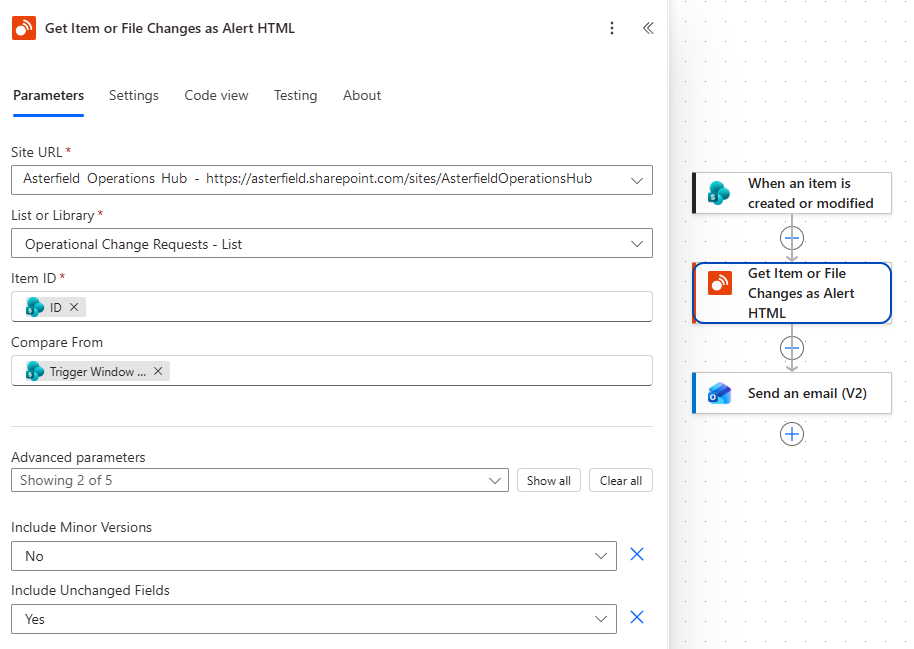
The HTML action configured for an operational change request list.
Outputs
| Output | What it contains |
|---|---|
HTML Body (htmlBody) |
Ready-to-use HTML describing the item or file and its field changes. |
Generated Alert Subject (subject) |
A suggested subject that uses added-item or changed-item wording as appropriate. |
Item or File Name (itemTitle) |
The SharePoint item title or file name. |
Item or File URL (itemUrl) |
A direct link to the SharePoint item, file, or page. |
Is New Item (isNewItem) |
true when the result should be treated as a newly added item or file rather than an update. |
Success (success) |
true when the action completed successfully. |
Message (message) |
A user-facing explanation of the result, including relevant processing information. |
Display User Notice (shouldDisplayUserNotice) |
true when the flow or agent should show the returned trial, subscription, or usage notice to the user. |
User Notice Code (userNoticeCode) |
A stable code that a flow can use when handling a notice. This output is omitted when there is no notice. |
User Notice Severity (userNoticeSeverity) |
The notice severity: information, warning, or critical. This output is omitted when there is no notice. |
User Notice (userNotice) |
The notice text to show the user. This output is omitted when there is no notice. |
User Notice Call to Action (userNoticeCallToAction) |
The recommended next step, including the Alert Relay website and support email. This output is omitted when there is no notice. |
Error (error) |
Technical error details when the action does not succeed. |
Send the generated alert by email
In an email action that supports HTML, map:
- Subject to Alert Relay's Generated Alert Subject
- Body to Alert Relay's HTML Body
Do not insert HTML Body into a plain-text-only destination. If you need plain text, a custom layout, conditions, or values for another channel, use Get Detailed Item or File Changes and format its structured output for that destination.
New items and updated items
Alert Relay determines whether the resolved comparison should be presented as a new item or an update.
For a new-item result:
- Is New Item is
true - the generated subject and HTML use added-item wording
- the HTML presents the item's initial values
For an updated-item result:
- Is New Item is
false - the generated subject and HTML use changed-item wording
- previous and current values are shown where available
Do not use Is Baseline First Version from the structured changes action as a substitute for Is New Item. They describe different conditions.
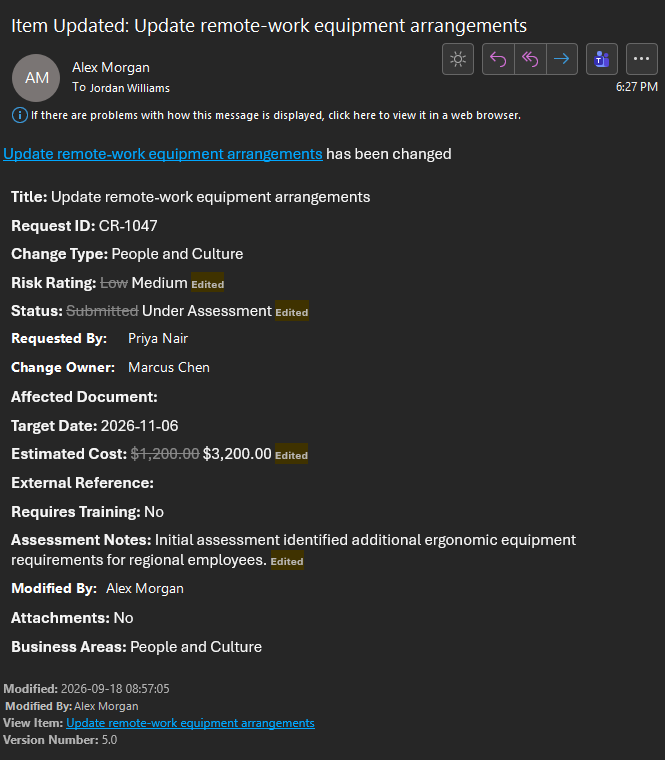
A generated alert showing several related changes from an operational assessment update.
Show trial, subscription, or usage notices
The action always returns Display User Notice. When it is true, present User Notice and User Notice Call to Action to the person responsible for the flow or its usage.
Keep the notice separate from the generated SharePoint alert unless your notification design intentionally sends account or subscription information to every alert recipient. The alert recipient and the person responsible for the Alert Relay subscription might not be the same person.
Use this action in Copilot Studio
You can add this action to a Copilot Studio agent as a tool when the agent or a connected process specifically needs ready-to-use HTML. For conversational explanations of what changed, Get Detailed Item or File Changes is usually the better tool because it returns structured field information.
Confirm that the agent's destination can use HTML before asking it to return HTML Body. Do not expect raw HTML to render correctly in every chat channel.
Common issues
The comparison covers more changes than expected
Check the value supplied to Compare From. A SharePoint trigger window can include several edits made before the action runs. Use a specific version or date only when that is the comparison you intend.
The alert contains too many fields
Set Include Unchanged Fields to No so the HTML contains only fields that changed.
Minor or draft changes are missing
Set Include Minor Versions to Yes and confirm that the Alert Relay connection can view those versions.
The email displays HTML markup
Confirm that the selected email action accepts HTML and that HTML Body, not another output, is mapped to its body.
The site or list picker is empty
Confirm that the Alert Relay connection uses the expected Microsoft 365 account and that the account can open the site and list. Select Site URL before opening List or Library. If needed, enter the site URL and exact list title or GUID as custom values.