
Creating Your First Alert Email
Create a Power Automate flow that sends a formatted email when someone creates or changes an item in a SharePoint list.
This is the quickest way to try Alert Relay. The completed flow has three steps:
- SharePoint detects that an item was created or modified.
- Alert Relay identifies what changed and generates the alert content.
- Outlook sends the generated subject and HTML body as an email.
Before you start
You need:
- a Microsoft 365 account that can create Power Automate flows
- access to the SharePoint site and list you want to monitor
- permission to create an Alert Relay connection in your Power Platform environment
- an email address that you can use for the first test
For an easy first test, use a SharePoint list with a Title column and one or two editable columns, such as Status, Due Date, or Assigned To.
Create the flow
1. Add the SharePoint trigger
In Power Automate, create an automated cloud flow and add the SharePoint trigger When an item is created or modified.
Configure:
- Site Address: Select the SharePoint site that contains your list.
- List Name: Select the list you want to monitor.
2. Add the Alert Relay action
Add the Alert Relay action Get Item or File Changes as Alert HTML.
If Power Automate asks for a connection, sign in with the Microsoft 365 account that can access the selected SharePoint site and list. Your organisation might require an administrator to approve the connection.
Configure:
- Site URL: Select the same site used by the SharePoint trigger.
- List or Library: Select the same list used by the trigger.
- Item ID: Select ID from the SharePoint trigger's dynamic content.
- Compare From: Select Trigger Window Start Token from the SharePoint trigger's dynamic content.
Using Trigger Window Start Token aligns the comparison with the SharePoint trigger window. To compare against a version, date, or another baseline instead, see Choose a comparison baseline.
You can leave the advanced inputs at their default values for this first flow.
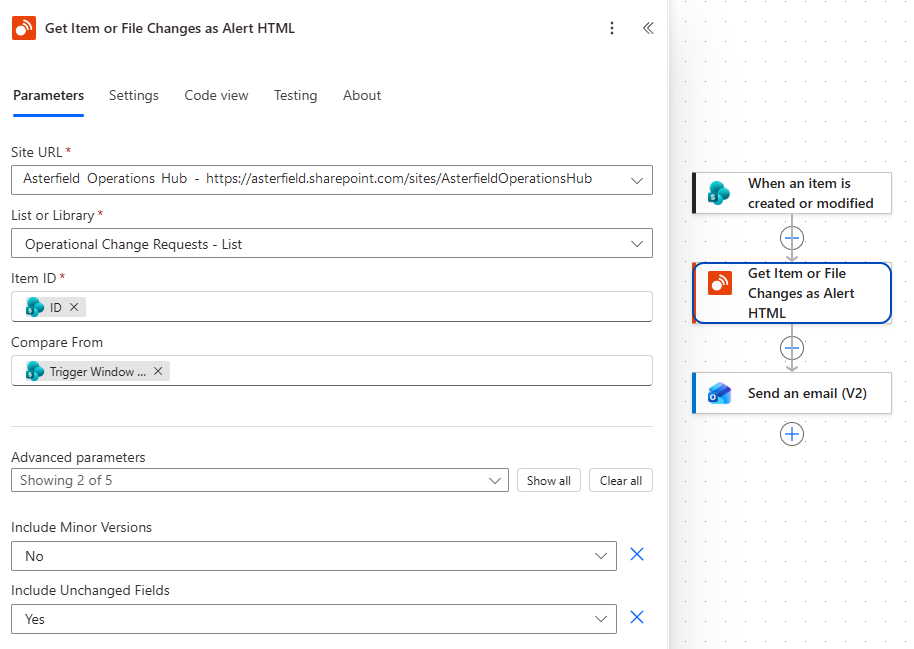
The Alert Relay action configured between the SharePoint trigger and the email action.
3. Add the email action
Add the Office 365 Outlook action Send an email (V2) after the Alert Relay action.
Configure:
- To: Enter the email address that should receive the test alert.
- Subject: Select Generated Alert Subject from the Alert Relay action's dynamic content.
- Body: Select HTML Body from the Alert Relay action's dynamic content.
The Alert Relay body is already formatted as HTML. You do not need to build an HTML table or compare the SharePoint fields yourself.
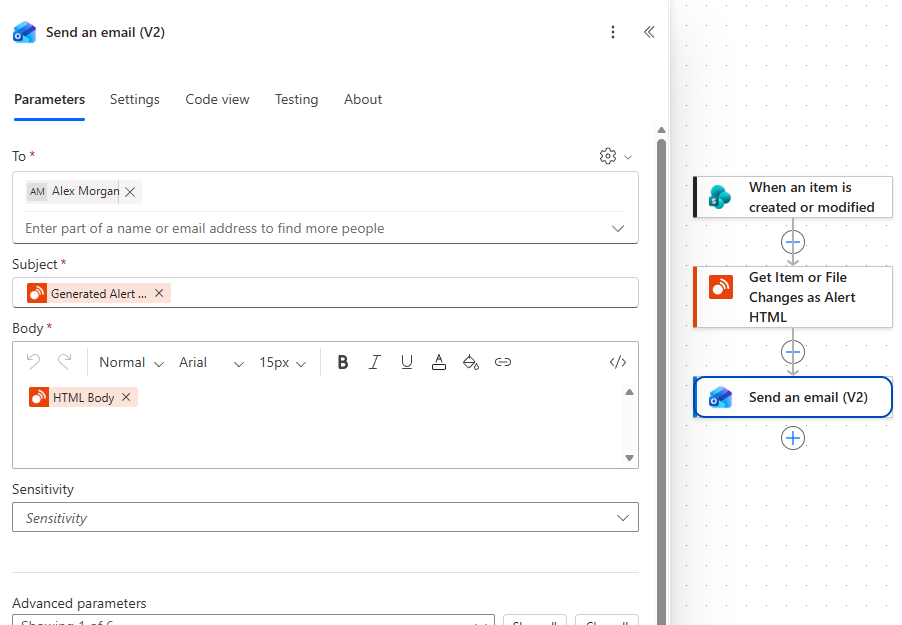
Alert Relay's generated subject and HTML body mapped into the Outlook email action.
4. Save or publish the flow
Make the completed flow available to run:
- For a standard cloud flow, select Save.
- For a solution-aware cloud flow that uses drafts and versioning, select Publish. Save draft preserves your work but does not make that draft active at runtime.
Resolve any errors reported by the flow checker. Then confirm that the latest changes are saved or published and that the flow is turned on.
Your completed flow should contain:
- When an item is created or modified
- Get Item or File Changes as Alert HTML
- Send an email (V2)
Test a new item
- Create an item in the SharePoint list.
- Wait for the flow to run.
- Open the flow's run history and confirm that all three steps succeeded.
- Open the email and confirm that it describes the item as added and shows its initial values.
Alert Relay returns Is New Item as true for a result that should be treated as a new-item alert. The generated subject and HTML use added-item wording.
Test an update
- Edit the same SharePoint item.
- Change several related fields and save the item.
- Wait for the flow to run again.
- Confirm that the new email identifies the item as changed and shows the previous and current values where available.
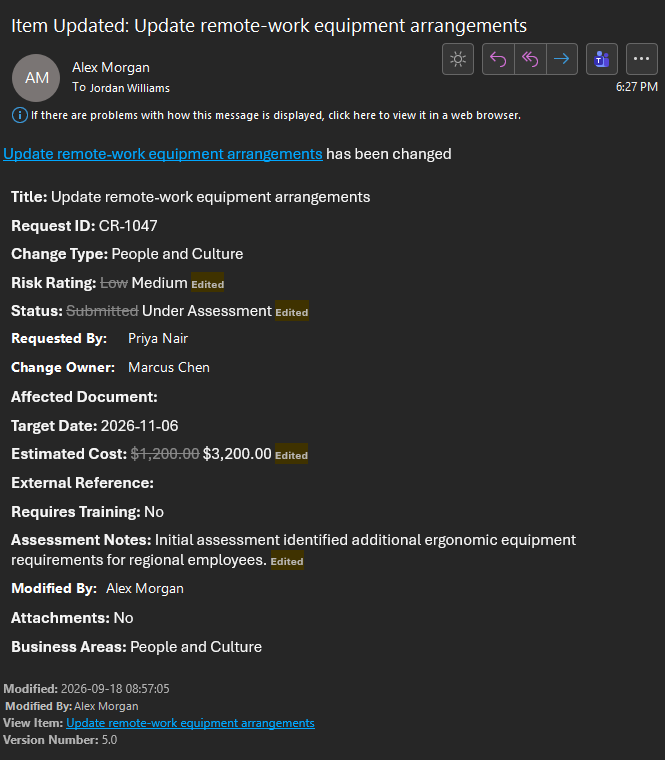
A generated alert showing assessment changes to the request's risk rating, status, estimated cost, and assessment notes.
If a site or list does not appear in the Alert Relay action
If the SharePoint site is missing from the Site URL picker, or the list is missing from the List or Library picker in Get Item or File Changes as Alert HTML, confirm that:
- the Alert Relay connection uses the expected Microsoft 365 account
- that account can open the SharePoint site and list
- Site URL is selected before List or Library
- the correct Power Platform environment is open
You can also enter a site URL, exact list title, or list GUID as a custom value when the designer allows it.
If the email does not look right
Open the flow's run history and check:
- the SharePoint trigger supplied the expected ID and Trigger Window Start Token
- the Alert Relay action succeeded and returned Generated Alert Subject and HTML Body
- the email action used those Alert Relay outputs rather than similarly named SharePoint values
- the email body was not converted to plain text by a different email action or later flow step
For more diagnostic steps, see Troubleshooting.
Next steps
- Learn more about Get Item or File Changes as Alert HTML.
- Use Get Detailed Item or File Changes when you want conditions, loops, or your own message format.
- Read Choose a comparison baseline for version, date, and trigger-token comparisons.
- Explore the complete Actions reference.