
Administrator Reference
Use this page to review what Alert Relay adds to a Microsoft 365 tenant, which delegated permissions it requests, and how connection identities affect SharePoint access in Power Automate and Copilot Studio.
What gets added to the tenant
When a user first authorizes an Alert Relay connection, Microsoft Entra ID provisions an enterprise application, also called a service principal, in the tenant.
| Property | Value |
|---|---|
| Display name | Alert Relay - Power Automate Connector |
| Publisher | INDEPENDNET PTY LTD (verified) |
| Publisher domain | independnet.com.au |
The enterprise application represents Alert Relay in the tenant and records the permissions granted to it.
To review it in the Microsoft Entra admin center:
- Open Entra ID.
- Select Enterprise apps and then All applications.
- Search for and select Alert Relay - Power Automate Connector.
If the application is not present, nobody in the tenant might have completed an Alert Relay authorization yet, or tenant consent policy might have stopped provisioning.
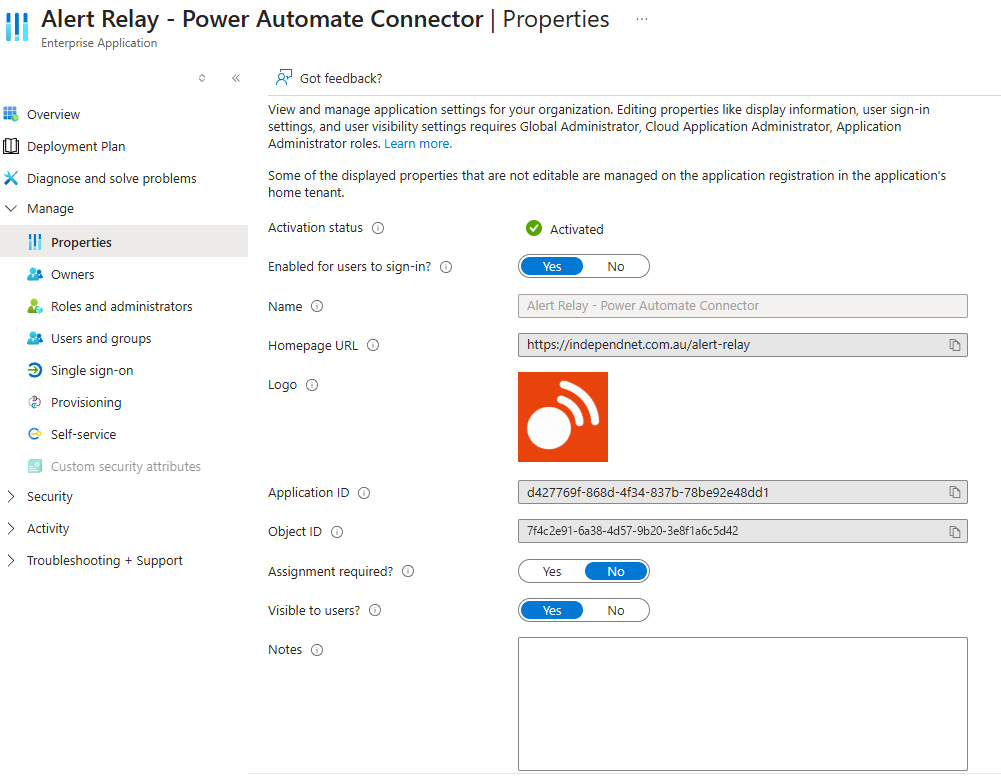
The Alert Relay enterprise application properties in Microsoft Entra.
Delegated permissions
Alert Relay requests delegated permissions. Delegated access means Alert Relay acts on behalf of the identity associated with the connector connection and remains limited by that identity's SharePoint permissions.
| Permission | Resource API | Why Alert Relay uses it |
|---|---|---|
Read items in all site collections (AllSites.Read) |
SharePoint | Read SharePoint items, fields, files, pages, and retained version history. |
Read items in all site collections (Sites.Read.All) |
Microsoft Graph | Discover accessible SharePoint sites and support SharePoint-related Graph operations. |
Sign in and read user profile (User.Read) |
Microsoft Graph | Identify the signed-in connection user for account and tenant-contact information. |
These are delegated read permissions. They do not give the connection identity access to a SharePoint site, list, library, item, file, page, or version that the identity cannot already read.
The Alert Relay connector does not request delegated SharePoint or Microsoft Graph permissions to create, edit, delete, or administer customer SharePoint content.
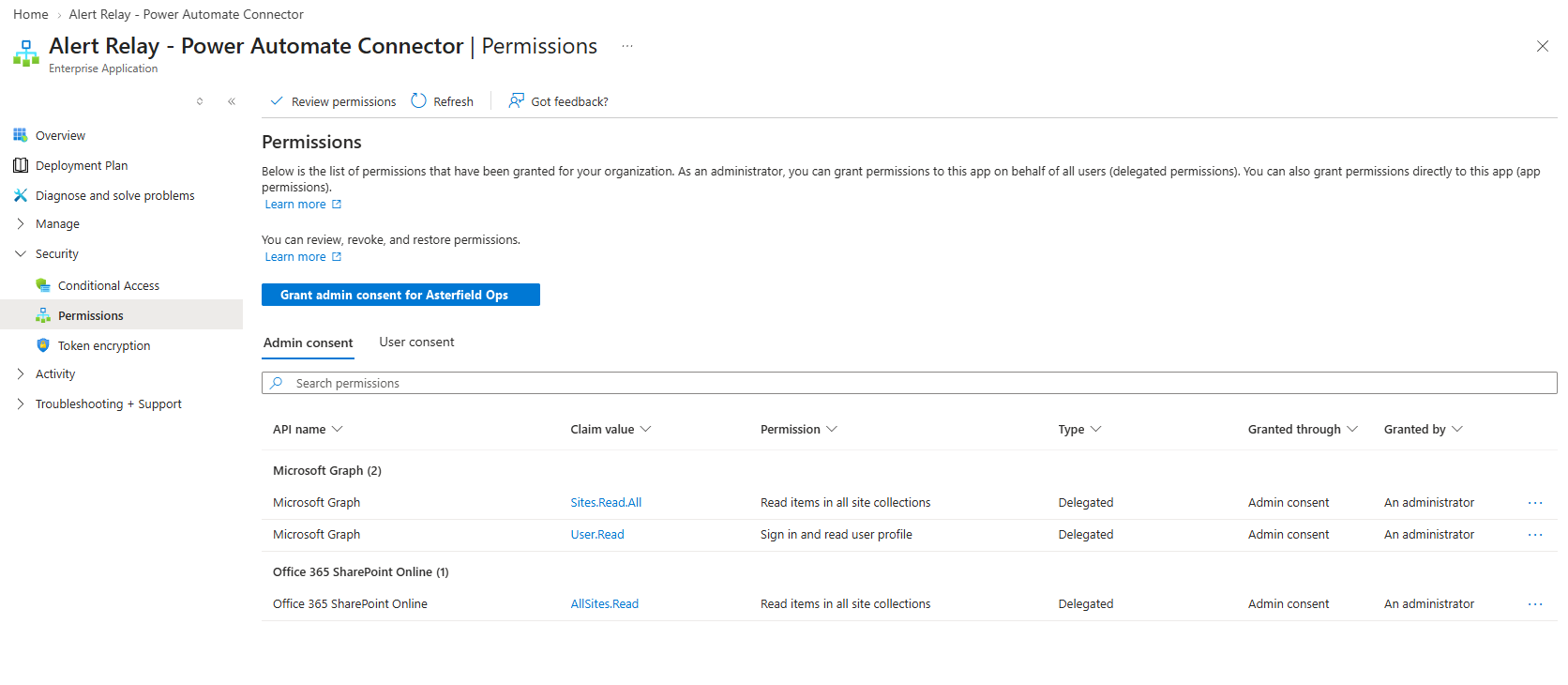
The three delegated permissions used by Alert Relay, with administrator consent recorded for the demonstration organisation.
Review and grant consent
Whether an ordinary user can authorize Alert Relay depends on the tenant's Microsoft Entra user-consent policy, permission classifications, and any admin-consent workflow. Do not assume that every tenant permits individual user consent.
If user consent is allowed for the requested application and permissions, a user can review and accept the consent prompt while creating an Alert Relay connection.
If user consent is blocked or approval is required, use the organisation's normal application-review process. Depending on tenant policy, the user might be able to submit an admin-consent request from the Approval required prompt.
An appropriately authorised administrator can grant tenant-wide consent after reviewing the verified publisher and requested permissions:
- Open Microsoft Entra admin center → Entra ID → Enterprise apps → All applications.
- Select Alert Relay - Power Automate Connector.
- Select Permissions under Security.
- Review every requested permission.
- Select Grant admin consent only if the organisation accepts the delegated access described on this page.
- Confirm that the permission status shows consent for the organisation.
Granting tenant-wide admin consent is a sensitive administrative operation. It allows users to authorize and use the application without each user granting the same permissions individually, subject to other tenant and Power Platform policies. It does not give Alert Relay application-only access to SharePoint and does not override each connection identity's SharePoint permissions.
An administrator creating a normal Alert Relay connection does not, by itself, prove that tenant-wide admin consent was granted. Verify the status on the enterprise application's Permissions page.
Microsoft documents the required roles and current procedure in Grant tenant-wide admin consent to an application.
How a Power Automate connection works
Alert Relay uses delegated OAuth authentication. When an Alert Relay action runs in Power Automate:
- Power Automate invokes Alert Relay using the identity associated with the selected Alert Relay connection.
- Alert Relay obtains the delegated SharePoint or Microsoft Graph access required for that request.
- SharePoint and Graph enforce that identity's permissions.
- Alert Relay returns only information that the identity was permitted to retrieve.
The flow owner and the Alert Relay connection identity are not necessarily the same person. Administrators should review the connection selected by each flow, especially after a flow is imported, shared, transferred, or moved through a solution.
Changing SharePoint permissions changes what later action runs can retrieve. It does not require granting broader permissions to the Alert Relay enterprise application.
Govern Copilot Studio connection credentials
An Alert Relay action added to a Copilot Studio agent is a connector tool. The credential option selected for that tool determines whose delegated SharePoint permissions apply.
End-user credentials
With end-user credentials:
- each user authorizes an Alert Relay connection when required
- SharePoint evaluates that user's permissions
- users can retrieve only content available to their own connection identity
This is the preferred model when an agent answers questions about SharePoint content whose access differs between users.
Maker-provided credentials
With maker-provided credentials, every tool invocation uses the maker's connection. An agent user can therefore receive information available to the maker's identity even when the user could not open that content directly in SharePoint.
Allow maker-provided credentials only when that shared-access model is intentional, reviewed, and consistent with the organisation's data governance policy. Do not use them merely to avoid an end-user sign-in prompt.
Power Platform administrators can control whether an environment or environment group permits end-user credentials, maker-provided credentials, or both. Review this setting alongside data policies, agent sharing, channel authentication, and the SharePoint scope configured in each tool.
Microsoft provides current governance instructions in Control maker-provided credentials for authentication.
Review Power Platform governance
Microsoft Entra consent is only one part of the control boundary. Also review:
- whether Alert Relay is permitted by the environment's data policies
- which environments can use the connector
- who can create and share connections, flows, solutions, and agents
- which connection references a solution uses after import
- whether Copilot Studio permits maker-provided credentials
- which published channels support the chosen authentication method
- whether users or groups must be assigned to the enterprise application
After changing a policy, consent grant, assignment, connection, or credential mode, test with both an authorised identity and an identity that should be denied.
Inspect or revoke individual connections
An individual Alert Relay connection can be repaired, reauthenticated, or deleted without deleting the tenant's enterprise application.
Before deleting a connection:
- Identify every Power Automate flow, solution connection reference, and Copilot Studio tool that uses it.
- Replace or rebind the connection where continued operation is required.
- Test the replacement identity's SharePoint access boundary.
- Delete the old connection.
- Confirm that affected flows and agents still work as intended.
Deleting a connection stops anything that depends on that connection until it is rebound or reauthorized.
Remove Alert Relay from the tenant
Deleting the enterprise application revokes its tenant consent and affects all Alert Relay connections that depend on it.
Before removing it:
- Inventory Alert Relay connections, flows, solution connection references, and Copilot Studio tools.
- Disable or update dependent automations and agents.
- Preserve any operational records required by the organisation's retention policy.
- Delete or revoke individual connections where appropriate.
- In the Microsoft Entra admin center, open the Alert Relay enterprise application and select Delete.
- Confirm that the application is no longer available and that no dependent automation is expected to continue running.
If Alert Relay is authorized again later, Microsoft Entra ID can provision the enterprise application again and users might need to recreate or reauthorize their connections.
The first connection attempt fails with AADSTS90008
If the first Alert Relay authorization in a tenant returns AADSTS90008, retrying can distinguish a transient first-authorization problem from a persistent configuration problem. The error code alone does not confirm the cause.
- Dismiss the error.
- Wait briefly and create the connection again.
- If the error continues, confirm that the enterprise application exists and review its permission-consent status.
- Check the tenant's user-consent policy and admin-consent workflow.
- Check whether Power Platform data policies allow Alert Relay in the selected environment.
Do not assume that a second attempt must succeed. If the error persists, record the complete correlation ID, timestamp, and error text shown by Microsoft before contacting support. Do not include access tokens or customer content.
See Troubleshooting for additional connection checks.
Information to collect for support
Collect only the information needed to diagnose the issue:
- the symptom or stable error code
- the affected Power Platform environment
- whether the problem affects Power Automate, Copilot Studio, or both
- the connection status and credential mode
- whether the enterprise application exists
- the names and consent status of the requested permissions
- the date and time of a privacy-safe test
Do not send OAuth tokens, client secrets, connection credentials, generated email bodies, SharePoint URLs, item or file contents, field values, or other customer business content.