
Get Detailed Item or File Changes
Use Get Detailed Item or File Changes when a Power Automate flow or Copilot Studio agent needs structured information about how a SharePoint item, file, or page changed.
The action compares the current SharePoint version with an earlier version and returns a Changed Fields array. Each entry identifies a field, its previous and current values, and whether it changed.
When to use this action
Use this action when you want to:
- apply flow conditions based on previous and current field values
- process changed fields in an Apply to each loop
- build your own email, Teams message, approval, or report
- explain field-level changes in a Copilot Studio conversation
- reuse the same comparison data in several later steps
Use Get Item or File Changes as Alert HTML instead when you want Alert Relay to generate a suggested email subject and ready-to-use HTML.
Inputs
| Input | Required | What to provide |
|---|---|---|
| Site URL | Yes | Select the SharePoint site that contains the item, file, or page, or enter its URL. |
| List or Library | Yes | Select the SharePoint list or library, or enter its exact title or GUID. Select Site URL first so the picker can show lists from that site. |
| Item ID | Yes | Enter the SharePoint list item ID. In a trigger-based flow, select ID from the SharePoint trigger's dynamic content. A document's item ID is not the same as its file identifier. |
| Compare From | No | Select the SharePoint trigger's Trigger Window Start Token for most change-triggered flows. You can also enter a SharePoint version label, raw change token, ISO 8601 date, or ISO 8601 date and time. If left blank, Alert Relay compares against the oldest eligible version available to the connection. |
| Include Minor Versions | No | Select Yes to include minor or draft versions. The default is No, so Alert Relay compares major versions only. The connection must be allowed to see the requested versions. |
| Include Unchanged Fields | No | Select Yes to return supported fields that did not change as well as fields that did. The default is Yes. Select No when you only need changed fields. |
| Date Format | No | Select the format used for formatted date values. The default is yyyy-MM-dd. |
| Time Format | No | Select the format used for formatted time values. The default is HH:mm:ss. |
| Timezone | No | Select the timezone used for formatted date and time values. The default is UTC. |
For a flow that starts with a SharePoint change trigger, Trigger Window Start Token is normally the best Compare From value. A trigger window can cover several edits, so the comparison is not necessarily limited to the last individual edit.
See Choose a comparison baseline for version, date, token, and blank-value behavior.
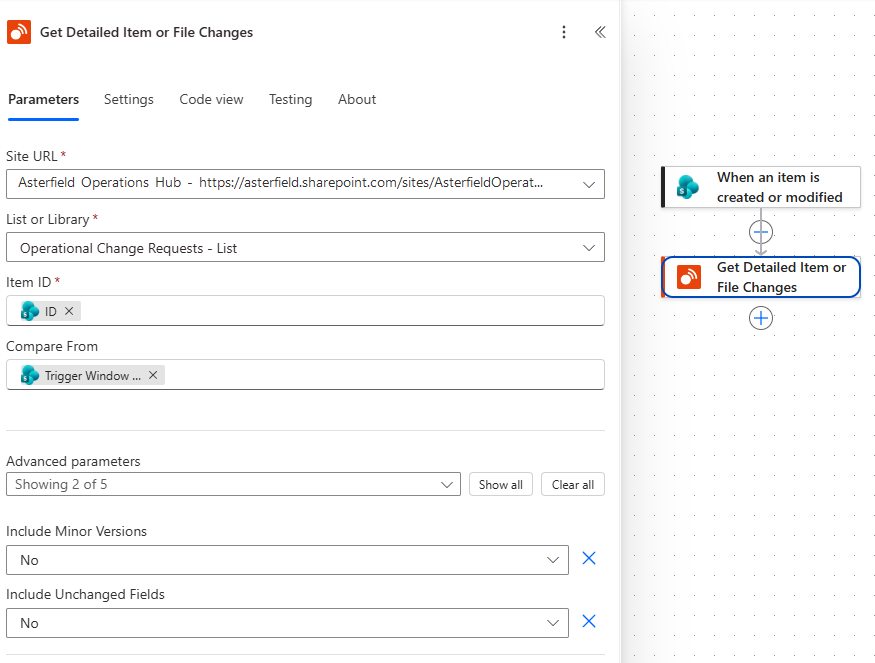
The structured changes action configured for an operational change request list.
Main outputs
| Output | What it contains |
|---|---|
Changed Fields (changedFields) |
An array containing one entry for each returned SharePoint field. |
Has Comparison Baseline (hasComparisonBaseline) |
true when Alert Relay resolved a distinct earlier version for comparison. |
Is Baseline First Version (isBaselineFirstVersion) |
true when the resolved comparison baseline is the first version recorded for the item or file. |
Is New Item (isNewItem) |
true when the resolved comparison should be treated as a newly added item or file rather than an update. |
Current Version Label (currentVersionLabel) |
The label of the current SharePoint version, such as 5.0. |
Previous Version Label (previousVersionLabel) |
The label of the version used as the comparison baseline. |
Item or File Name (itemTitle) |
The SharePoint item title or file name. |
Item or File URL (itemUrl) |
A direct link to the SharePoint item, file, or page. |
Modified Date (modifiedDate) |
The date and time of the latest modification. |
Modified By (modifiedBy) |
The display name of the person who last modified the item or file. |
Success (success) |
true when the action completed successfully. |
Message (message) |
A user-facing explanation of the result, including relevant processing information. |
Error (error) |
Technical error details when the action does not succeed. |
Is Baseline First Version and Is New Item are not interchangeable. The first describes which baseline was selected; the second describes whether the result should be presented as a new item or an update.
Understand Changed Fields
Changed Fields is an array. In Power Automate, selecting a value from this array commonly creates an Apply to each loop.
Each array entry contains:
| Field output | What it contains |
|---|---|
Field Internal Name (internalName) |
The stable SharePoint internal name. Use this for flow logic when display names might change. |
Field Name (displayName) |
The user-facing SharePoint field name. Use this in messages and reports. |
Column Value Has Changed (hasChanged) |
true when the field value changed between the baseline and current version. |
Previous Column Value (Text) (previousAsString) |
The previous value formatted as readable text. |
Current Column Value (Text) (currentAsString) |
The current value formatted as readable text. |
Previous Column Value (Detailed) (previous) |
The previous value in its detailed form. Depending on the SharePoint field type, it can be text, a number, a Boolean value, an object, an array, or null. |
Current Column Value (Detailed) (current) |
The current value in its detailed form. Depending on the SharePoint field type, it can be text, a number, a Boolean value, an object, an array, or null. |
Text values or detailed values
Use the Text outputs for email, Teams messages, summaries, and other content intended for people. Alert Relay has already formatted these values using the selected date, time, and timezone options.
Use the Detailed outputs when your flow needs to inspect or process the underlying value. People, lookup, taxonomy, URL, and other complex SharePoint fields can return structured objects or arrays.
Calculated Text, Number, Currency, Date and Time, and Boolean fields return their computed results. Alert Relay does not return the SharePoint formula.
Process only fields that changed
The simplest approach is to set Include Unchanged Fields to No. The Changed Fields array will then contain only fields whose values changed.
You can process the array like this:
- Add Apply to each after Get Detailed Item or File Changes.
- Select Changed Fields as the array to process.
- Inside the loop, use Field Name and the Text values to build a message, or use Field Internal Name and the Detailed values for flow logic.
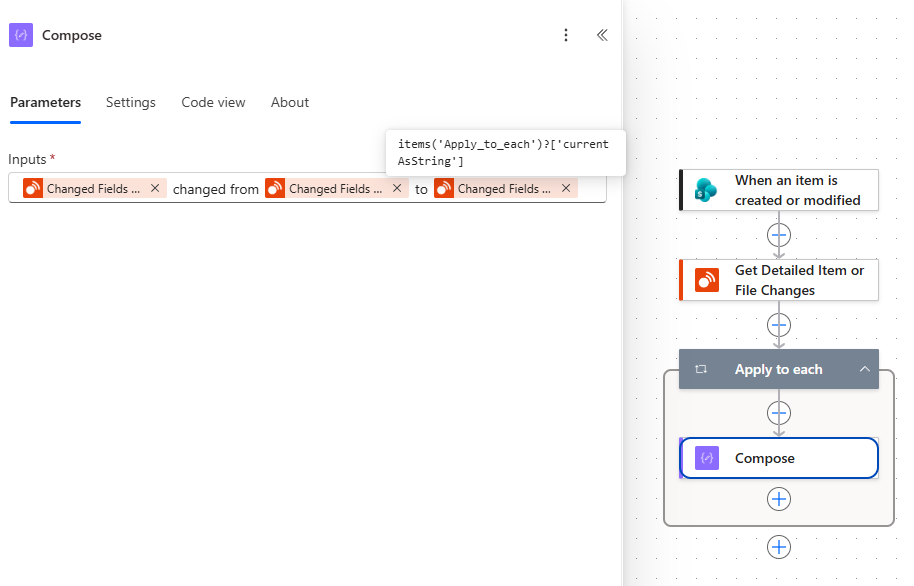
A Compose action builds a readable line from the field name and its previous and current text values. Power Automate truncates the token labels in the input; the tooltip identifies the selected current text output.
Example: respond when Status changes to Approved
Suppose a flow should notify the publishing team only when Status changes from Draft to Approved.
- Set Include Unchanged Fields to No in the Alert Relay action.
- Add Filter array or Apply to each using Changed Fields.
- Find the entry whose Field Internal Name identifies the Status column.
- Confirm that Column Value Has Changed is
true. - Confirm that Previous Column Value (Text) is
Draftand Current Column Value (Text) isApproved. - Send the notification or start the approval process.
Use the actual internal name from your SharePoint list. A field's internal name can differ from its displayed name, particularly if the field was renamed.
Show trial, subscription, or usage notices
The action always returns Display User Notice (shouldDisplayUserNotice). It also returns these outputs when a notice should be shown:
- User Notice Code (
userNoticeCode) - User Notice Severity (
userNoticeSeverity) - User Notice (
userNotice) - User Notice Call to Action (
userNoticeCallToAction)
When Display User Notice is true, show User Notice and User Notice Call to Action to the person responsible for the flow or agent. The call to action includes the Alert Relay website and support email.
Use this action in Copilot Studio
This is normally the best Alert Relay tool for questions about how one SharePoint item, file, or page changed. Its structured output lets an agent explain individual fields instead of interpreting generated HTML.
When configuring the tool:
- provide or collect enough information to identify the site, list or library, and item
- describe when the agent should compare changes rather than retrieve several historical versions
- make sure the connection identity can access the requested SharePoint content
- instruct the agent to preserve the meaning of previous and current values
- ensure the agent shows any returned user notice and call to action
Test with questions such as:
- “What changed on this request?”
- “Who last changed this document and what did they update?”
- “Did the status change from Draft to Approved?”
Generative tool selection can vary with the conversation context. Test missing or ambiguous site, list, and item information, and confirm that the agent asks for what it needs instead of inventing identifiers.
Common issues
Changed Fields contains fields that did not change
The default for Include Unchanged Fields is Yes. Set it to No if you only want changed fields.
A condition stops working after a SharePoint field is renamed
Use Field Internal Name for stable flow conditions and Field Name for user-facing text. Renaming a SharePoint field normally changes its display name but not its internal name.
A detailed value is difficult to use in a message
Use Previous Column Value (Text) or Current Column Value (Text). The detailed value might be an object or array for a complex SharePoint field.
The comparison covers more changes than expected
Check Compare From. The SharePoint trigger window can include several edits made before the Alert Relay action runs.
Minor or draft changes are missing
Set Include Minor Versions to Yes and confirm that the Alert Relay connection can view those versions.
The site or list picker is empty
Confirm that the Alert Relay connection uses the expected Microsoft 365 account and that the account can open the site and list. Select Site URL before opening List or Library. If needed, enter the site URL and exact list title or GUID as custom values.