
Use Alert Relay in Copilot Studio
Add Alert Relay to a Copilot Studio agent when you want users to ask conversational questions about changes to SharePoint items, files, or pages.
For your first tool, use Get Detailed Item or File Changes. It returns structured previous and current values that an agent can explain in plain language.
An Alert Relay action is a tool, not a knowledge source. The tool retrieves current SharePoint information when the agent calls it. It does not add SharePoint content to the agent's knowledge.
Before you begin
You need:
- permission to edit an agent in Copilot Studio
- access to a Power Platform environment where Alert Relay is available
- an Alert Relay connection, or permission to create one
- access to the SharePoint sites, lists, libraries, items, files, and versions that you want to test
- a privacy-safe SharePoint item or file for testing
Your organisation's Power Platform data policies, connector policies, licensing, or Microsoft Entra consent settings can affect whether Alert Relay is available and whether you can create a connection.
Choose an Alert Relay tool
| Tool | Use it when the agent needs to |
|---|---|
| Get Detailed Item or File Changes | Explain one before-and-after comparison, including previous and current field values. Start with this tool. |
| Get Item or File Version History | Retrieve several versions, inspect selected fields over time, or answer questions about a version range. |
| Get Item or File Changes as Alert HTML | Produce ready-to-use notification HTML and a suggested subject. This is generally more useful in an email process than in a conversational answer. |
| Parse SharePoint Version Information | Decode a SharePoint trigger token or make a controlled version-processing decision. It is not normally suitable for general user questions. |
Avoid adding several tools with overlapping purposes until you have tested the first one. Clear differences between tool names and descriptions help generative orchestration select the intended tool.
Add Get Detailed Item or File Changes
- Sign in to Copilot Studio and open the agent you want to edit.
- Open the agent's Tools page.
- Select Add a tool.
- Select Connector.
- Search for
Alert Relayand select the connector. - Select Get Detailed Item or File Changes.
- If Copilot Studio asks for a connection, select Create new connection, sign in, and complete any consent prompts.
- Select Submit or Create, as shown in your environment.
- Select Add and configure.
The tool configuration page opens. The tool is enabled by default when it is added.
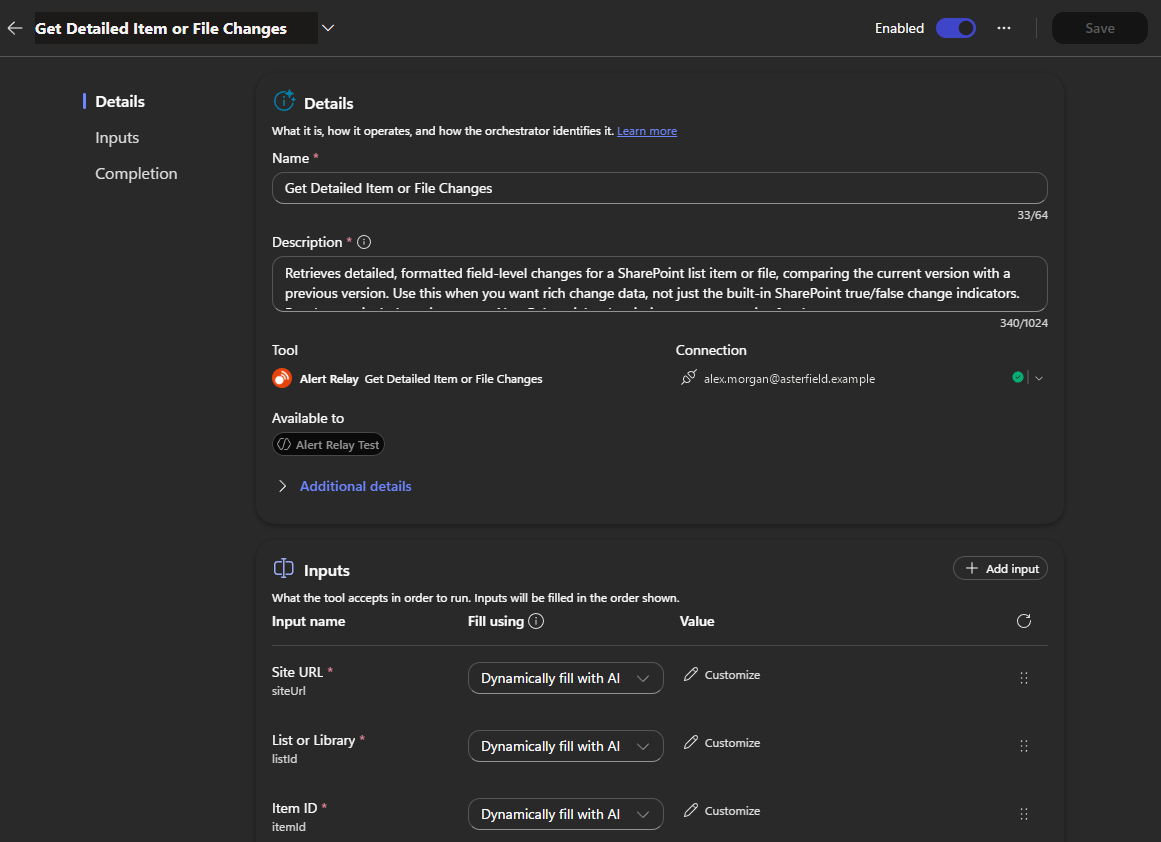
The enabled Alert Relay tool configuration page, showing its description, connection, and available inputs.
Configure the tool details
The tool name and description help generative orchestration decide when to use the tool.
Keep the canonical tool name Get Detailed Item or File Changes. Use a description that clearly distinguishes one comparison from Version History. For example:
Retrieve previous and current SharePoint field values for one item, file, or page. Use this tool to explain what changed between a selected baseline and the current version. Do not use it to retrieve several historical versions.
Leave Allow agent to decide dynamically when to use the tool enabled when you want generative orchestration to select the tool from a user's request. Turn it off when the tool should be called only from a controlled topic.
Choose whose credentials the tool uses
Alert Relay reads SharePoint with the delegated Microsoft 365 identity associated with its connector connection. It does not give that identity additional SharePoint permissions.
Copilot Studio normally configures a connector tool to use the end user's credentials. Use this option when each user should see only SharePoint content that they can already access. A user can be prompted to create or authorize a connection before the tool runs.
Use maker-provided credentials only when it is an intentional, approved access model. Every user of the agent can then receive information available to the maker's connection, even when the user could not open that content directly in SharePoint.
Important: Do not use maker-provided credentials merely to avoid user sign-in. Confirm the intended data-access boundary with the SharePoint owner and your Power Platform administrator first.
Authentication can behave differently between the Copilot Studio test pane and a published channel. Test the connection and access boundary again in every channel where the agent will be available.
Configure the tool inputs
Open Inputs on the tool configuration page. Copilot Studio can fill an input dynamically from the conversation, or you can override it with a fixed value, variable, or Power Fx formula.
For a first agent, limit the tool to one known SharePoint list or library:
| Input | Recommended first configuration |
|---|---|
| Site URL | Set a fixed value for the SharePoint site used by the agent. |
| List or Library | Set a fixed exact list title or GUID. |
| Item ID | Let the agent fill it dynamically, and require the user to provide the numeric SharePoint item ID. |
| Compare From | Let the agent fill it dynamically when users need comparisons from a version or date. Otherwise, choose a controlled default for the scenario. |
| Include Minor Versions | Set a fixed value. Use No unless users are allowed to work with draft versions and the connection can see them. |
| Include Unchanged Fields | Set No for concise conversational answers that focus on actual changes. |
| Date Format | Set the display format expected by your users, such as dd/MM/yyyy. |
| Time Format | Set the display format expected by your users, such as HH:mm:ss. |
| Timezone | Set the business timezone, such as Australia/Adelaide. |
Do not expect an end user to know a raw SharePoint change token. For conversational requests, Compare From is normally an exact version label or an ISO 8601 date or date and time. If the user's request does not identify a baseline, configure the agent to ask what version or date the comparison should begin from.
Use clear input descriptions. For example, describe Item ID as:
The numeric SharePoint item ID. Ask the user for the ID if it is not already available. Do not use a file path, file identifier, title, or invented value.
Describe Compare From as:
The earlier comparison point. Accept an exact SharePoint version label such as 4.0, or an ISO 8601 date or date and time. Ask a follow-up question when the requested comparison period is unclear.
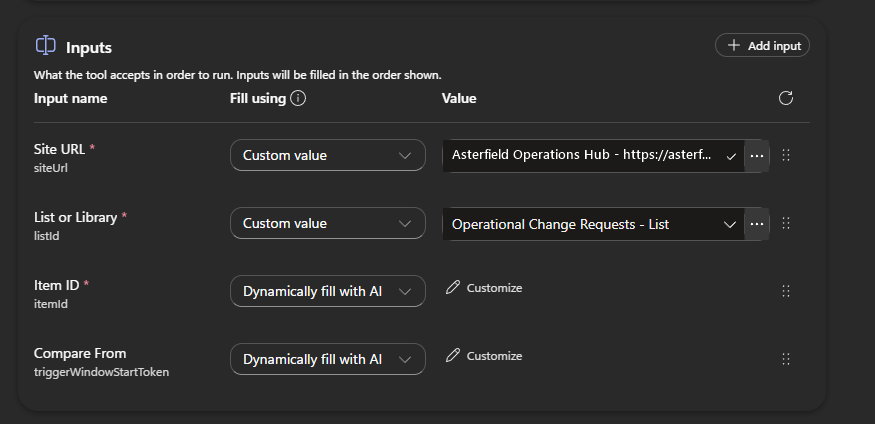
The tool is restricted to one SharePoint list while the agent obtains Item ID and Compare From dynamically from the conversation.
Configure how the agent uses the result
The structured output includes the resolved current and previous version labels and a Changed Fields array. Each changed-field entry can contain its display name, internal name, change indicator, and previous and current values.
Configure the completion behaviour so the agent:
- identifies the versions that were compared when that context matters
- preserves the meaning of previous and current values
- says when no distinct comparison baseline was available
- does not claim a field changed when Column Value Has Changed is
false - uses readable Text values for people, dates, lookups, taxonomy, URLs, and other complex fields
- reports Message or Error information instead of inventing a result when Success is
false - shows User Notice and User Notice Call to Action when Display User Notice is
true
Allowing the agent to generate a contextual response is appropriate for a general change-summary tool. Use a specific response or call the tool from a topic when the wording, branching, or output format must be deterministic.
Save and test the tool
Select Save on the tool configuration page.
Open Test your agent.
Start with a request that contains the item ID and a clear comparison point, for example:
What changed on item 14 since version 3.0?
Inspect the test activity or trace and confirm that the agent selected Get Detailed Item or File Changes.
Confirm that Site URL, List or Library, Item ID, and Compare From contain the intended values.
Confirm that the answer accurately distinguishes previous and current values.
Generative orchestration uses the conversation context and the names and descriptions of available tools, inputs, and outputs. Tool selection and response wording can therefore vary between conversations.
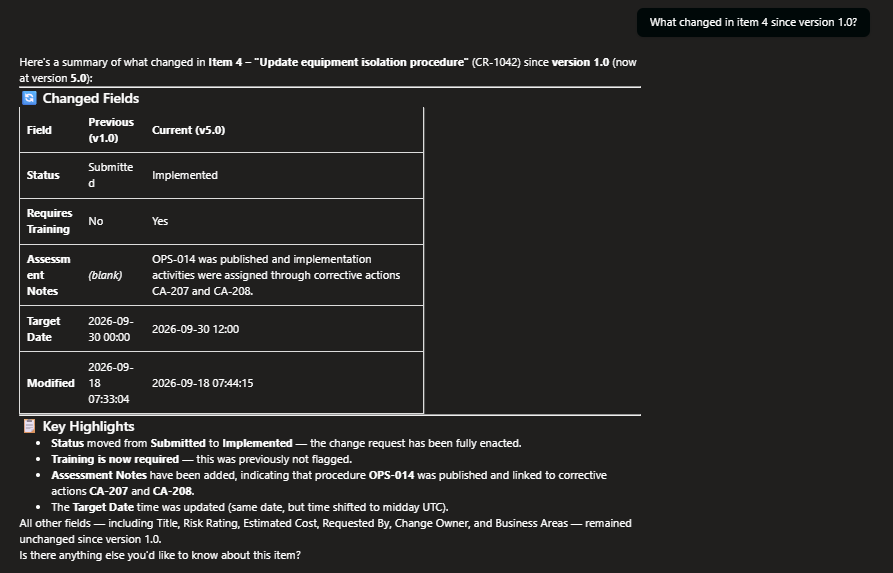
A test response summarising previous and current field values returned by the configured Alert Relay tool.
Test missing, ambiguous, and unauthorized requests
Do not stop after one successful prompt. Test these cases before publishing:
- Omit the item ID and confirm that the agent asks for it rather than inventing one.
- Ask “What changed?” without a version or date and confirm that the agent asks which comparison point to use when your scenario requires one.
- Refer to an item by title only and confirm that the agent does not pass the title as Item ID.
- Ask for several historical versions and confirm that the agent does not select the single-comparison tool when Get Item or File Version History is available.
- Test with an identity that cannot access the SharePoint item and confirm that no item information is disclosed.
- Test an expired or missing connection and confirm that the agent provides an authentication or connection recovery path.
- Confirm that any trial, subscription, or usage notice is included in the answer.
- Retest the published agent in its intended channel.
Add Version History as a second tool
Add Get Item or File Version History when users need several historical versions rather than one comparison.
Use a description such as:
Retrieve several versions of one SharePoint item, file, or page, newest first. Use this tool for version timelines, selected field values over time, or an inclusive version or date range. Use Get Detailed Item or File Changes for one before-and-after comparison.
For a first Version History tool:
- fix Site URL and List or Library to the intended business scope
- select only the SharePoint fields the agent needs
- use a conservative Maximum Usage Units value
- limit Maximum Versions to the number the agent can usefully explain
- set Include Minor Versions to match the users' SharePoint permissions and scenario
- make Compare From and Compare To dynamic only when users need an inclusive range
- instruct the agent to report partial results, range resolution, notices, and truncation
Test prompts such as:
- “Show the five most recent versions of item 14.”
- “How did the Status and Assigned To fields change between versions 2.0 and 5.0?”
- “Who changed this item during September 2026?”
See Get Item or File Version History for its limits, field selection, range resolution, pagination, and outputs.
Call a tool from a topic
Use a topic when you need a controlled conversation instead of allowing generative orchestration to decide when and how to call Alert Relay.
- Open the agent's Topics page.
- Create or open the topic that will handle the SharePoint request.
- Add the questions or variables needed to collect the site scope, item ID, and comparison point.
- Select Add node and then Add a tool.
- Select the Alert Relay tool.
- Map the topic variables to the tool inputs.
- Add conditions for unsuccessful results and user notices.
- Save the topic and test every branch.
This pattern is useful when the agent must validate an item ID, restrict the available comparison choices, request confirmation, or return a fixed response format.
Common issues
Alert Relay does not appear when adding a connector
Confirm that you are working in the correct Power Platform environment and that Alert Relay is available there. Ask a Power Platform administrator to check connector and data-policy restrictions if it remains unavailable.
The agent selects the wrong Alert Relay tool
Make the tool descriptions more distinct. State explicitly that Detailed Changes performs one comparison and Version History retrieves several versions. Remove or disable tools that the agent does not need.
The agent supplies the wrong site, list, or item
Use fixed Site URL and List or Library values for a scoped agent. Strengthen the Item ID description and test missing and ambiguous requests. Do not allow the agent to convert a title, path, or file identifier into an assumed item ID.
A user is asked to sign in
This is expected when the tool uses end-user credentials and the user has not authorized the Alert Relay connection, or when the connection token has expired or been revoked. After authentication, retry the request.
The test pane works but the published channel does not
Check whether the channel supports the configured authentication method and whether its single sign-on settings are complete. Test the user connection in the published channel rather than assuming test-pane authentication will carry across.
The response omits a notice or failure
Update the tool's completion instructions so the agent checks Success, Message, Error, Display User Notice, User Notice, and User Notice Call to Action before composing its answer.