
Get Item or File Version History
Use Get Item or File Version History to retrieve a bounded, pageable history of a SharePoint item, file, or page.
The action returns version details, selected SharePoint field values, readable text values, and indicators showing what changed from one available version to the next. Results are ordered from newest to oldest.
When to use this action
Use this action when you want to:
- display an item's recent version history
- build an audit, review, or reporting flow
- inspect how selected fields changed across several versions
- answer version-history questions in a Copilot Studio agent
- retrieve a range bounded by versions, dates, or SharePoint trigger tokens
Use Get Detailed Item or File Changes instead when you only need one comparison between the current version and an earlier baseline.
Start with a small request
For your first request:
- Select the SharePoint site and list or library while editing the action.
- Supply an Item ID.
- Leave Maximum Usage Units at
1. - Leave Maximum Versions at its default of
20, or choose a smaller number. - Select only the fields you need in Fields to Return.
- Run the flow and inspect the Versions output.
Starting with fewer fields and versions makes the output easier to understand and reduces the work used to build it.
Inputs
| Input | Required | What to provide |
|---|---|---|
| Site URL | Yes | Select the SharePoint site that contains the item, file, or page, or enter its URL. |
| List or Library | Yes | Select the SharePoint list or library. Select it while editing the action so Alert Relay can make its columns available as dynamic content. |
| Item ID | Yes | Enter the SharePoint list item ID. A document's item ID is not the same as its file identifier. |
| Maximum Usage Units | Yes | Set the maximum usage units the request may consume, from 1 to 50. The default is 1. This is a spending boundary, not a version limit. |
| Maximum Versions | No | Set the maximum number of complete version rows to return across all pages. The default is 20. Use this to limit the number of versions independently from the usage-unit boundary. |
| Fields to Return | No | Select up to 100 SharePoint columns to include in every version. Leave it empty to return all supported columns. Selecting fewer fields can reduce response size and usage-unit work. |
| Compare From | No | Set the inclusive older boundary. Use a version label, raw change token, SharePoint Trigger Window Start Token, ISO 8601 date, or ISO 8601 date and time. Leave it blank for no older boundary. |
| Compare To | No | Set the inclusive newer boundary. Use a version label, raw change token, SharePoint Trigger Window End Token, ISO 8601 date, or ISO 8601 date and time. Leave it blank for no newer boundary. |
| Paging Token | No | Use the protected token from an earlier response when manually retrieving the next page. Use it exactly as returned. |
| Include Minor Versions | No | Select Yes to include minor or draft versions. The default is No, so only major versions are returned. The connection must be allowed to see the requested versions. |
| Date Format | No | Select the format used for readable date values. The default is yyyy-MM-dd. |
| Time Format | No | Select the format used for readable time values. The default is HH:mm:ss. |
| Timezone | No | Select the timezone used for readable date and time values and date-only boundaries. The default is UTC. |
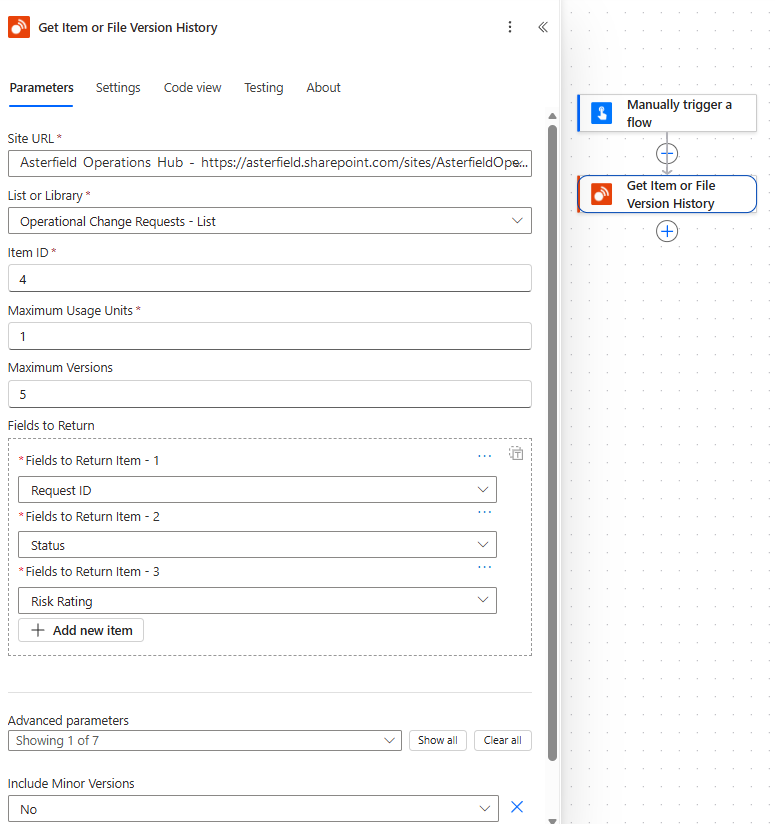
The Version History action configured with separate usage and version limits and three selected SharePoint fields.
Select fields to return
Select Site URL and List or Library before configuring Fields to Return. The field picker displays each SharePoint column's display name but submits its internal name.
If you enter a custom value, use the column's internal name or GUID—not its display name.
Leaving Fields to Return empty returns every supported column. This can make each version wider, increase response size, and consume the allowed usage-unit budget more quickly. Select only the fields needed by the flow or agent whenever practical.
Fields to Return in the new Power Automate designer
In the new designer, Fields to Return can initially appear as a text box instead of a column picker.
If that happens:
- Select Site URL and List or Library.
- Save the standard cloud flow, or save the draft of a solution-aware flow.
- Close the designer.
- Reopen the flow.
- Open Fields to Return again.
The column picker should then be available. This is a designer lifecycle limitation; manually entered values must still be internal names or GUIDs.
The configured-action screenshot above shows the per-item picker after reopening the flow, with Request ID, Status, and Risk Rating selected.
Understand usage and version limits
Maximum Usage Units and Maximum Versions control different things:
- Maximum Usage Units limits the amount of billable work the logical request may consume.
- Maximum Versions limits the total number of complete version rows returned.
One usage unit can return several versions. The number depends on how many fields are selected and the work required to retrieve and format their values.
Alert Relay returns only complete version rows. A successful response can stop before reaching Maximum Versions when the usage-unit budget, available tenant quota, response size, execution duration, or another service safety limit is reached. Complete rows already returned can still be charged. Check Message, Truncation Reason, Has More, and Can Continue before treating a partial result as complete.
If the first matching version cannot fit within the selected Maximum Usage Units, Alert Relay returns Minimum Usage Units Required when it can calculate that value. Increase the budget only if the additional usage is acceptable, or select fewer fields.
Choose a version range
Compare From and Compare To are inclusive boundaries:
- Compare From is the older boundary.
- Compare To is the newer boundary.
For example, setting Compare From to 2.0 and Compare To to 5.0 can return versions 5.0, 4.0, 3.0, and 2.0, subject to minor-version visibility, limits, and available history.
Date-only values use midnight in the selected Timezone, or midnight UTC when no timezone is selected. Alert Relay reports how each boundary was resolved and the actual version labels used. A boundary can be moved inward when the requested point falls outside the available history.
Understand each version row
The Versions (value) array contains the returned version snapshots. Every row includes common version information:
| Output | What it contains |
|---|---|
Version Label (versionLabel) |
The SharePoint version label, such as 4.0 or 4.1. |
Version Date (versionDate) |
When SharePoint created the version. |
Version By (versionBy) |
The person who created the version. |
Is Minor Version (isMinorVersion) |
Whether the row is a minor or draft version. |
Is First Version (isFirstVersion) |
Whether SharePoint confirms this is the item's first version. It can be blank when SharePoint cannot determine this. |
Is Oldest Available (isOldestAvailable) |
Whether this is the oldest version currently available to the connection. |
Changed Field Count (changedFieldCount) |
The number of returned fields that changed from the preceding available version. It is blank when there is no preceding version to compare. |
Changed Fields (changedFields) |
An object containing a change indicator for every returned SharePoint field. |
Version History Information (versionHistoryInfo) |
Usage, continuation, and page-final information retained on version rows during automatic pagination. |
Each selected SharePoint field also becomes dynamic content on the version row. Complex fields can provide both a detailed value and a readable Text value. Use the readable value in messages and the detailed value when the flow or agent needs its structure.
Calculated Text, Number, Currency, Date and Time, and Boolean fields return their computed results. Alert Relay does not return the SharePoint formula.
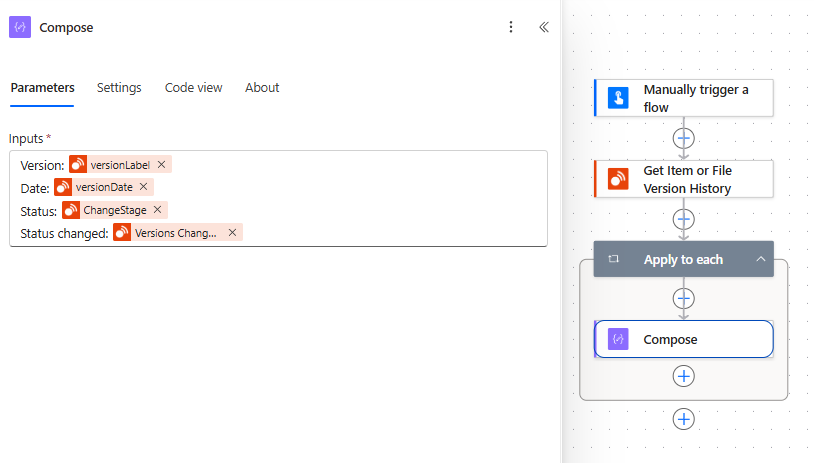
A Compose action uses each version's label, date, Status value, and Status change indicator. Power Automate displays some tokens using their internal names and truncates longer labels.
Retrieve more than one page in Power Automate
Each connector response contains no more than 100 versions. To let Power Automate retrieve additional pages automatically, enable pagination on the Alert Relay action and set a threshold for the total number of version rows the flow may collect.
In the new designer:
- Select the Get Item or File Version History action.
- Open Settings, then Networking.
- Turn on Pagination.
- Set Threshold to the maximum number of version rows Power Automate should collect.
In the classic designer, open the action's menu, select Settings, turn on Pagination, and set Threshold.
These are independent ceilings. Maximum Versions limits the total complete version rows that Alert Relay can return for the logical request. Power Automate's Threshold limits the total rows that Power Automate will collect while following continuation links. They do not need to contain the same number; collection stops when the applicable lower limit is reached. The request can still stop earlier because of the usage-unit budget, available history, tenant quota, or service safety limits.
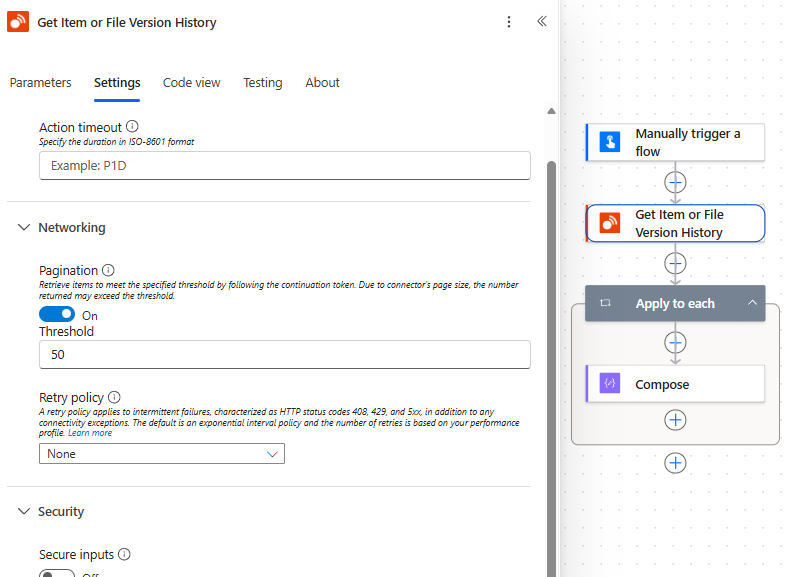
Power Automate configured to collect up to 50 version rows while following continuation links.
Read final status after automatic pagination
Power Automate combines the Versions arrays returned by the physical pages. It does not preserve every page's top-level response information in the combined array.
Alert Relay therefore places cumulative usage information on every version row and page-final status on the final normal row of each physical page. After pagination finishes, use the last returned row's Version History Information to inspect the final cumulative status.
For an action named Get_Item_or_File_Version_History, the expression is:
last(body('Get_Item_or_File_Version_History')?['value'])?['versionHistoryInfo']
If your action has a different internal step name, use that name in the expression.
A SharePoint column named versionHistoryInfo is not discarded. Alert Relay gives that customer column a collision-safe name such as versionHistoryInfoField.
Main response information
The action also reports:
| Output | What it contains |
|---|---|
| Versions Returned | Complete versions returned by the current physical request. |
| Versions Returned Total | Complete versions returned across the logical paging session so far. |
| Fields Returned | SharePoint fields included in each version row. |
| Usage Units Charged | Usage units charged for the current physical request. |
| Cumulative Usage Units Charged | Total usage units charged across the logical paging session so far. |
| Usage Unit Limit | The Maximum Usage Units boundary selected by the caller. |
| Has More | Whether more matching history exists beyond this response. |
| Can Continue | Whether the logical session can retrieve another page within its protected limits and remaining budget. |
| Paging Token | Protected token for manually requesting the next page. |
| Paging Token Expires At | UTC time after which that token cannot be used. |
| Truncation Reason | Why the response stopped before returning every matching version. |
| Resolved From Version Label | Actual inclusive older version used after range resolution. |
| Resolved To Version Label | Actual inclusive newer version used after range resolution. |
| History Changed During Paging | Whether an expected unreturned version became unavailable and paging moved inward to the next visible older version. |
| Error Code | Stable reason when the request cannot return the requested result. |
The response also includes Success, Message, item information, range-resolution details, and the standard Alert Relay user-notice outputs.
Show trial, subscription, or usage notices
The action always returns Display User Notice (shouldDisplayUserNotice). It also returns these outputs when a notice should be shown:
- User Notice Code (
userNoticeCode) - User Notice Severity (
userNoticeSeverity) - User Notice (
userNotice) - User Notice Call to Action (
userNoticeCallToAction)
When Display User Notice is true, show User Notice and User Notice Call to Action to the person responsible for the flow or agent.
Use this action in Copilot Studio
Add this action as a tool when an agent needs to answer questions about several SharePoint versions. Use Get Detailed Item or File Changes for a single before-and-after comparison.
When configuring the tool:
- prefer a fixed or otherwise controlled site and list scope when the agent serves a defined business scenario
- make sure the connection identity can access the requested SharePoint content
- choose a conservative Maximum Usage Units value
- limit Maximum Versions and Fields to Return to the information needed by the agent
- describe whether the user is asking for recent history, a version range, or one detailed comparison
- ensure the agent reports notices, partial results, and truncation instead of presenting an incomplete result as complete
Test prompts should identify a known test item without exposing production data. Confirm that the agent asks for missing information instead of inventing site, list, or item identifiers.
Power Apps support
Get Item or File Version History is a Power Automate action and Copilot Studio tool. It is not supported as a directly callable typed Power Apps data source.
The supported Power Apps approach is to call the action through a solution-aware Power Automate flow that returns an app-friendly result.
Common issues
Fields to Return is a text box
Select the site and list, save the flow or draft, close the designer, and reopen it. If entering a value manually, use the SharePoint column's internal name or GUID.
A selected SharePoint field is unavailable
The list schema might have changed since the action was configured. Refresh Fields to Return and select the field again. For substantial schema changes, Power Automate might require the action to be removed and added again before its dynamic content refreshes.
Fewer versions were returned than requested
Check Message, Truncation Reason, Has More, Can Continue, and the usage outputs. The request might have reached its usage-unit boundary, available tenant quota, pagination threshold, available history, or a safety limit.
More history exists, but the flow returned only one page
Enable pagination on the action, increase its threshold to the intended total, and confirm that Maximum Versions and Maximum Usage Units allow additional results.
The paging token expired
Start a new Version History request. Do not reuse or modify an expired token.
Minor or draft versions are missing
Set Include Minor Versions to Yes and confirm that the connection identity can view those versions.
A field value is difficult to use in a message
Use the field's Text output when available. Detailed values for people, lookup, taxonomy, URL, and other complex fields can be objects or arrays.