
What's New in Alert Relay v1.1
Alert Relay v1.1 adds complete SharePoint version-history retrieval, clearer action names, improved version-processing decisions, and outputs designed for both Power Automate flows and Copilot Studio agents.
Existing flows continue to use the same underlying connector operations. The renamed actions are clearer display names rather than replacements for the existing operations.
Action names are clearer
The existing actions now use names that describe the SharePoint information they work with:
| Earlier name | v1.1 name |
|---|---|
| Get Detailed Item Alert HTML | Get Item or File Changes as Alert HTML |
| Get Detailed Item Changes | Get Detailed Item or File Changes |
| Parse Compare From | Parse SharePoint Version Information |
The new Get Item or File Version History action joins these three updated actions.
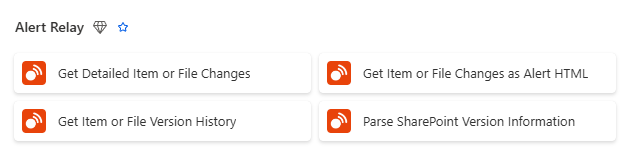
Alert Relay actions available in Power Automate.
Retrieve complete item or file version history
Get Item or File Version History retrieves several versions of one SharePoint item, document, or page, newest first.
Use it to:
- review how selected fields changed over time
- build audit, governance, approval, or reporting flows
- retrieve an inclusive range using version labels, dates, or SharePoint trigger tokens
- answer version-history questions in a Copilot Studio agent
- retrieve more than 100 versions by enabling Power Automate pagination
Each version can include:
- its SharePoint version label, date, and author
- selected SharePoint field values
- readable text for supported complex fields
- indicators showing which returned fields changed
- usage, range-resolution, and continuation information
You control the request with separate Maximum Versions and Maximum Usage Units limits. Fields to Return lets you limit each version to the SharePoint columns needed by your flow or agent.
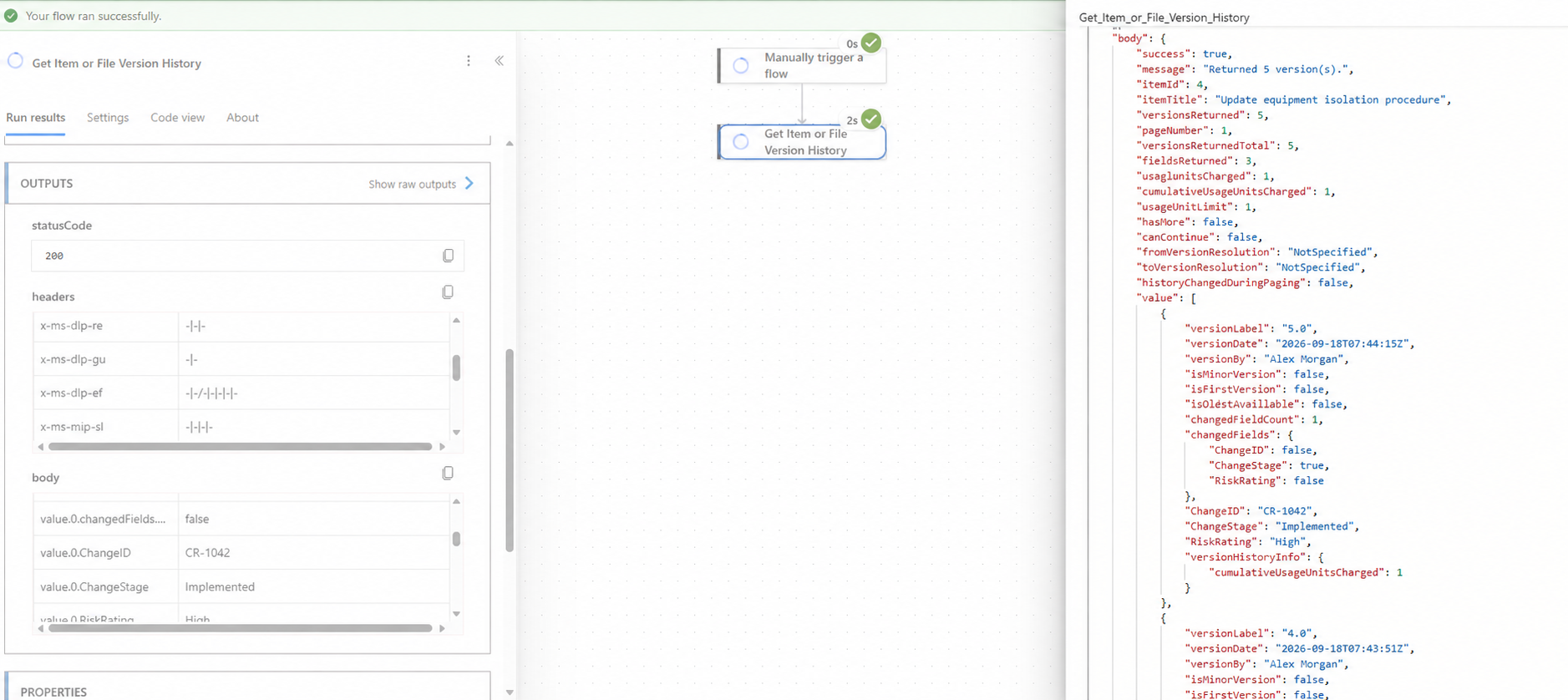
Version History results showing selected field values across several versions.
See Get Item or File Version History for setup, ranges, field selection, limits, and pagination.
Distinguish a new item from its comparison baseline
Get Detailed Item or File Changes now returns Is New Item (isNewItem) as named dynamic content.
Use Is New Item when a flow or agent needs to decide whether to present the result as a newly added item or as an update.
This output is separate from Is Baseline First Version:
- Is New Item describes how the overall result should be presented.
- Is Baseline First Version describes the version selected as the comparison baseline.
Do not substitute one output for the other in flow conditions.
Make version-processing decisions before a detailed action
Parse SharePoint Version Information can now combine a SharePoint trigger token with optional version metadata.
In addition to decoding the token, it can use:
- Version Number
- Modified Date
- Include Minor Versions
- Timezone
The Is New Version Detected output gives a three-state decision:
true: continue to the detailed Alert Relay actionfalse: skip the detailed action because the visible version was excluded or did not occur within the trigger window- blank: the token was parsed, but there was not enough version metadata to decide
This action is non-billable. Use it before a detailed change action when SharePoint draft activity can trigger a flow without producing a new version visible to the connection.
See Parse SharePoint Version Information for the complete decision pattern.
Show trial, subscription, and usage notices
The following actions now return a shared set of notice outputs:
- Get Item or File Changes as Alert HTML
- Get Detailed Item or File Changes
- Get Item or File Version History
Check Display User Notice (shouldDisplayUserNotice). When it is true, show:
- User Notice
- User Notice Call to Action
Flows can also use User Notice Code and User Notice Severity for structured handling.
These notices can communicate relevant trial, subscription, expiry, or usage information without changing the normal action result. Continue to check Success, Message, and Error to determine whether the action itself succeeded.
Parse SharePoint Version Information does not return these notices because it is non-billable.
Work with more SharePoint field values
Alert Relay v1.1 adds support for the computed results of these calculated SharePoint field types:
- Text
- Number
- Currency
- Date and Time
- Yes or No
Calculated results participate in comparison, readable formatting, structured output, and generated alert HTML. Alert Relay returns the computed result, not the SharePoint formula.
As with other historical fields, a previous value is available only when SharePoint supplies that value in version history.
Find sites and lists more easily
The Site URL and List or Library pickers can use search text to narrow their results. This helps in tenants containing many SharePoint sites, lists, or libraries.
If a site or list is not shown in the picker, you can still enter a custom value:
- enter the full SharePoint site URL for Site URL
- enter the exact list or library title, or its GUID, for List or Library
The Alert Relay connection identity must already have permission to access the selected SharePoint content.
Use Alert Relay actions as Copilot Studio tools
The v1.1 action names, descriptions, inputs, and structured outputs make their intended agent use clearer.
- Use Get Detailed Item or File Changes for one before-and-after explanation.
- Use Get Item or File Version History for several versions or a historical range.
- Use Get Item or File Changes as Alert HTML when a process specifically needs notification HTML.
- Use Parse SharePoint Version Information for controlled token or version decisions.
The three billable actions also return structured user notices that an agent can present with the result.
See Use Alert Relay in Copilot Studio for tool setup, authentication, input configuration, and testing.
Comparison behaviour to remember
The two change actions continue to support a SharePoint trigger token, raw change token, version label, ISO 8601 date, or ISO 8601 date and time in Compare From.
When Compare From is blank, these actions compare with the oldest eligible version available to the connection. They do not automatically select the immediately preceding version.
For most flows started by a SharePoint change trigger, use Trigger Window Start Token. A trigger window can cover several edits, so check the returned version labels when the exact comparison boundary matters.
See Choose a Comparison Baseline for complete token, version, date, blank-value, and Version History range behaviour.
What to check after the update appears
When v1.1 becomes available in your Power Platform environment:
- Open an existing Alert Relay flow and confirm that its actions still load.
- Confirm that the actions display their new names.
- Save or publish the flow if Power Automate refreshes its action metadata.
- Run a privacy-safe test and inspect the action inputs and outputs.
- Confirm that existing conditions still use the intended dynamic content.
- Add Is New Item or user-notice handling only where the flow needs it.
- Add and test Get Item or File Version History in a separate flow before using it with production content.
Power Automate can cache connector metadata in an existing flow. If a new input or output is not visible, save or publish the flow, close the designer, and reopen it. If the metadata remains stale, remove and add that action again after recording its current configuration.